
Just 5 Steps
Launch Your Online Shop in a Snap!
Want to start an eCommerce shop? These 5 steps will help you build one quickly!
Need help setting up your shop? Contact the SHOPLINE team now!
Build your eCommerce Brand with SHOPLINE
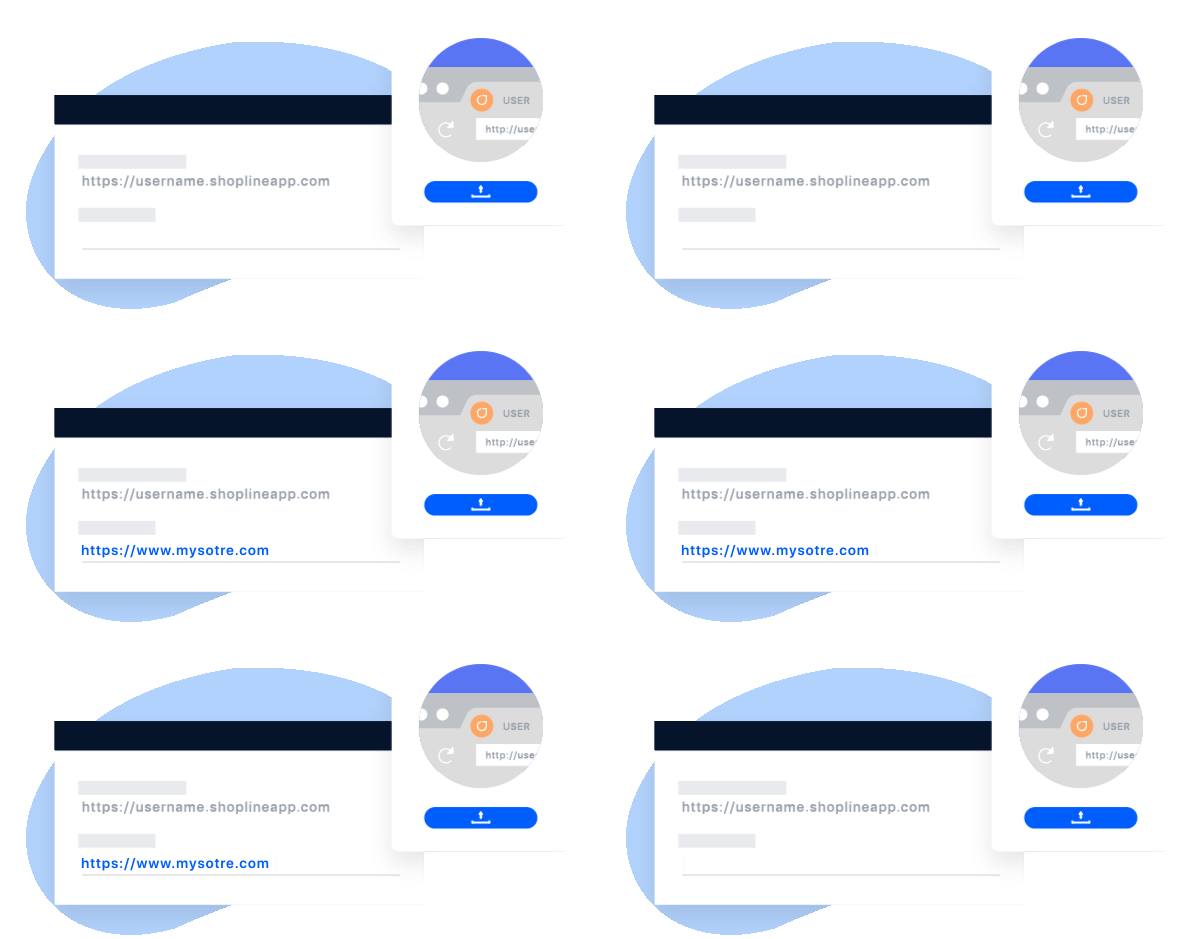
In SHOPLINE admin panel > Settings > Domain Settings, you can apply for your custom domain which gives your store its unique identity and credibility. Then, you can upload your Logo and Favicon, so that your customers are able to see the store’s logo on all pages, allowing them to have a long-lasting impression after seeing it!
- All shops are granted a free custom domain to help develop online brand awareness.
- We also provide free domain transfer service. We do all the admin work for you, so you don’t need to start from scratch again.
Create a Unique Storefront
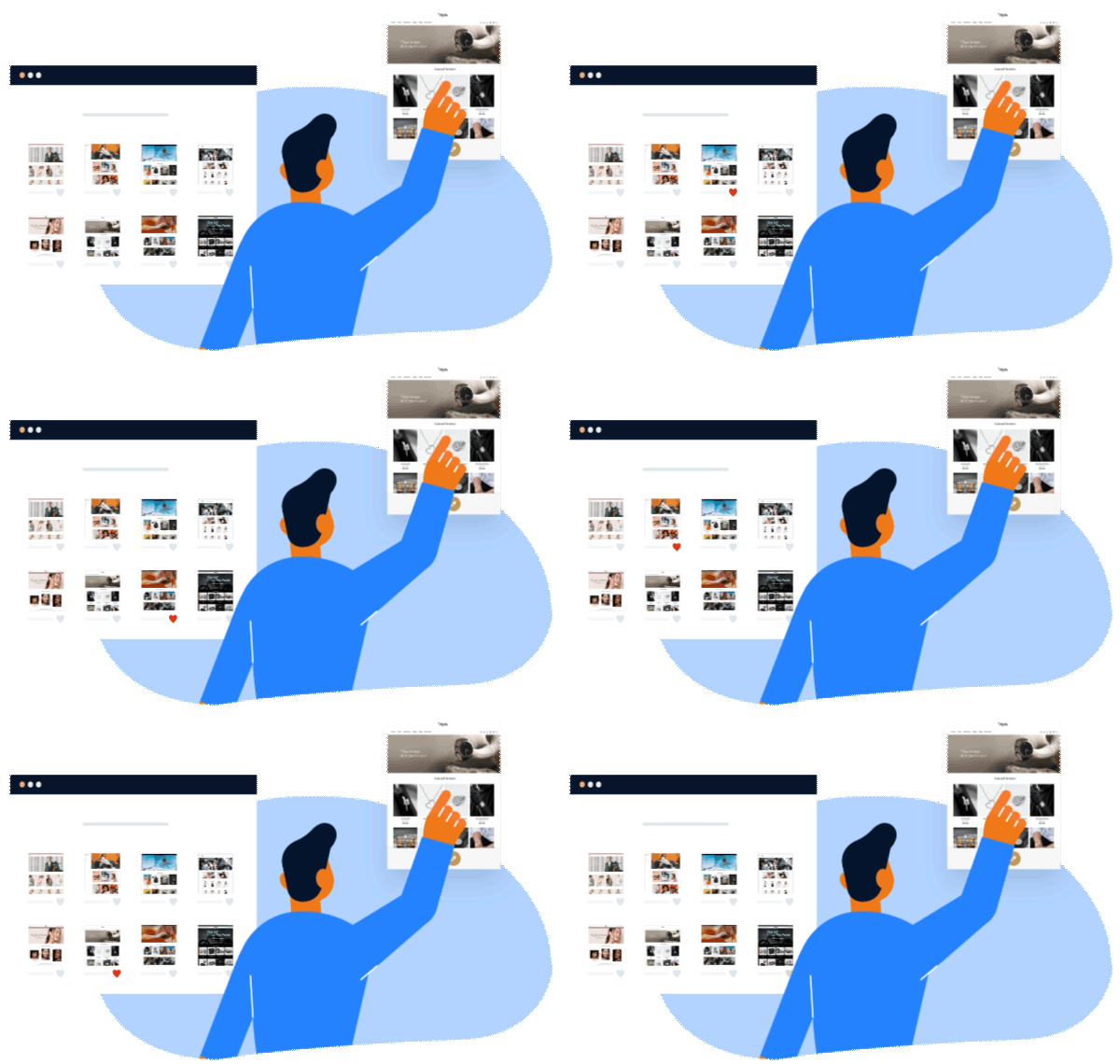
In SHOPLINE admin panel > Online Store Design > Design, you can pick any theme, background and layout that fit your product image and branding.
After deciding the style of your store, you can start to create more pages. In Online Store Design > Pages, edit and create unlimited website pages. You can add pictures, videos, QR Code, Facebook plugin and other widgets easily through the drag-and-drop tool. Wisely use our modules to create your unique store with outstanding style, enhancing customers’ trust in your brand!
- We offer 20 different themes and 10 shop widgets for you to set up your store easily and quickly.
- SHOPLINE provides SEO settings for you to optimise search results.
Setup Logistics and Delivery Options
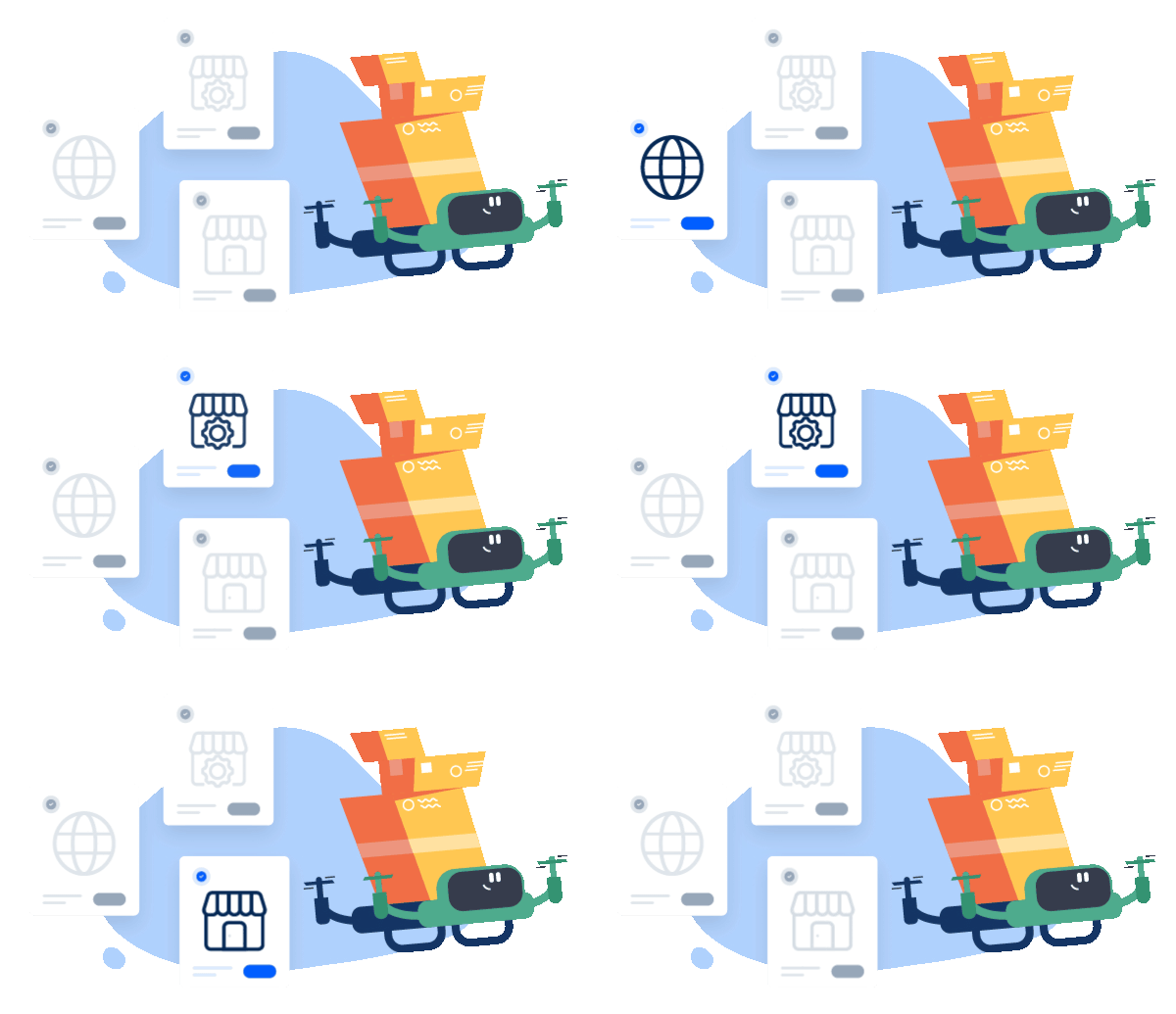
Providing multiple delivery options can raise customer satisfaction and increase sales. Under SHOPLINE admin panel > Settings > Delivery Options, we offer various delivery options such as local and overseas delivery, custom shipping options and more. Choose a suitable delivery method, set the delivery fee and its display name (visible to customers in checkout), then you are all set.
A handy shipping option helps to speed up the delivery process and improve overall customer turnover and satisfaction rate by providing them with a more pleasant shopping experience.
- We provide local logistics integrations such as Janio and Ninjavan.
- You can add descriptions to custom delivery options like face-to-face delivery to explain the details of the delivery process.
Setup Payment Options
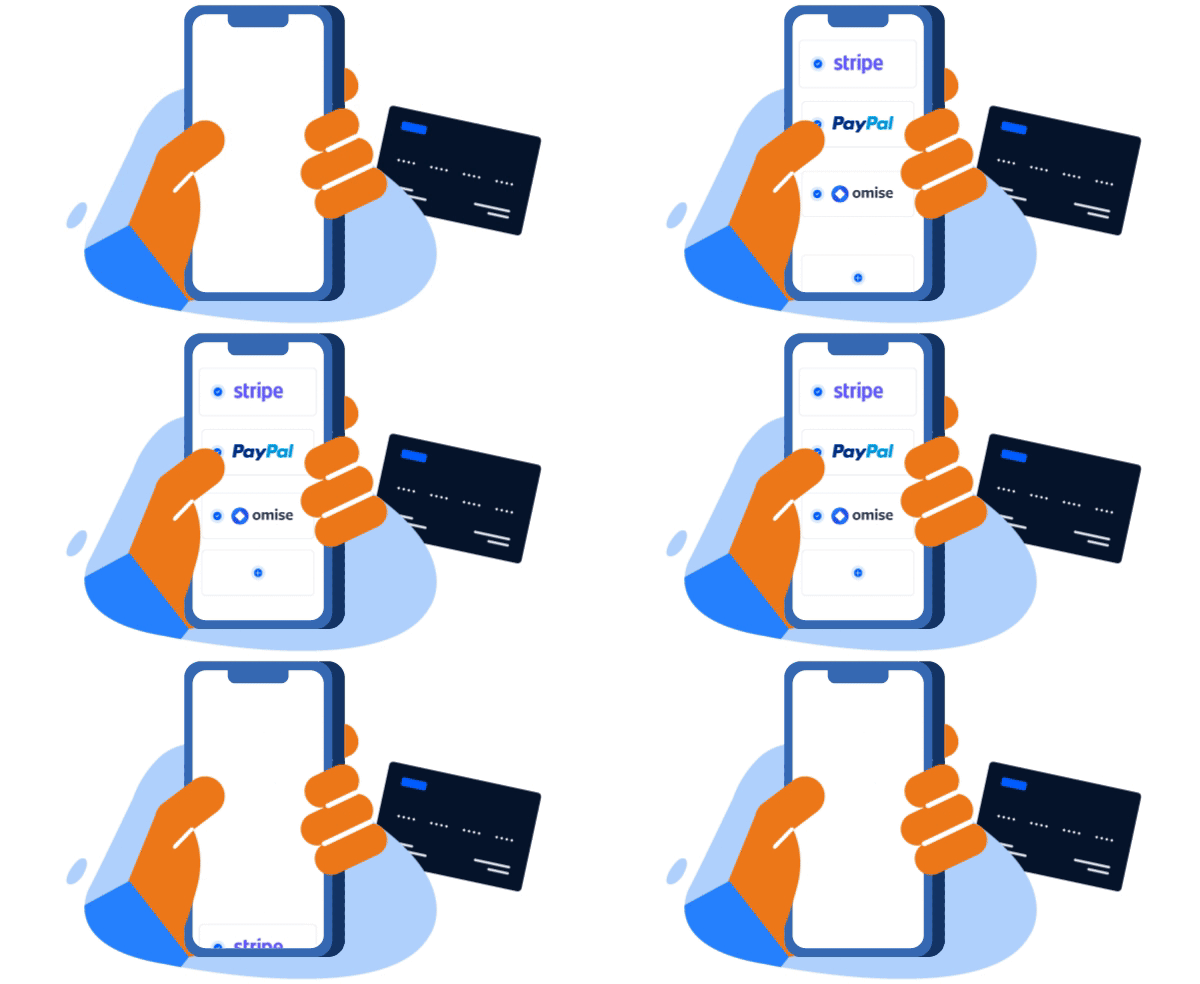
Allowing customers to complete the transactions safely and quickly is the most critical factor when setting up payment options. SHOPLINE works with multiple well-known local and overseas third-party payment gateways to offer secured and easy-to-use payment options for buyers and sellers.
Under SHOPLINE admin panel > Settings > Payment Options, you can choose SHOPLINE Payments, credit card, ATM transfer or other custom options (e.g. cash-on-delivery).
- You can add instructions to custom payment options like cash-on-delivery for customers to understand the payment procedures easily.
- SHOPLINE Payments makes payment even easier! It takes only 15 minutes to set up VISA, MasterCard and Apple Pay.
Upload Products and Assign Categories
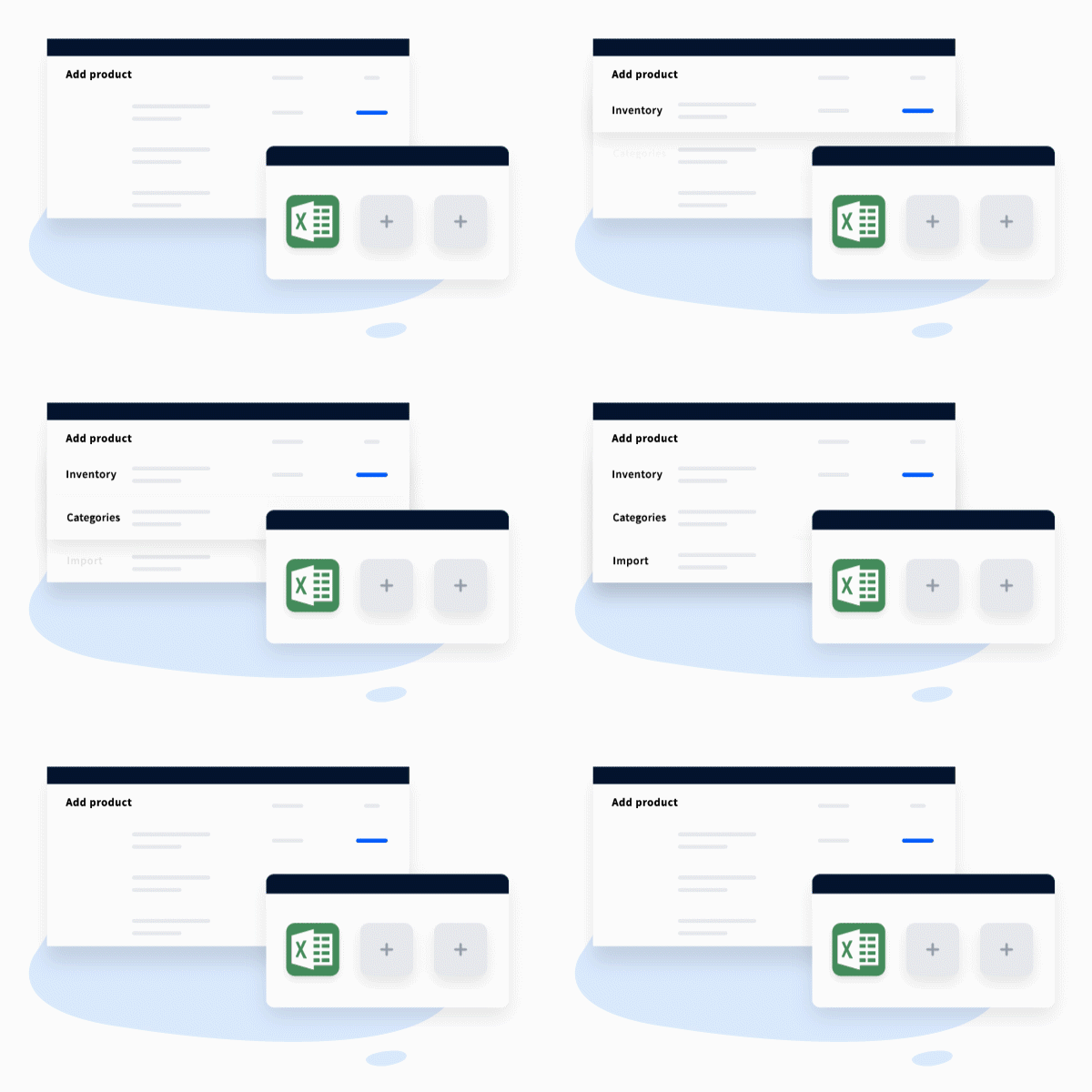
Last but not least, please complete all product information to attract customers to purchase. In SHOPLINE admin panel > Products and Categories, you can add new products, upload product pictures, add product descriptions, price, quantity, variations, etc. Voila! A brand new product page is ready for your preview!
Then, in Categories, you can adjust the display order of all products and create categories. To finish things up, go to Online Store Design > Menu Navigation to add pages, product categories, external links and other tabs to the menu. Adjust the order as you wish, and your online store is all set and ready to go!
- Having too many products to upload manually? Use our bulk import feature!
- You can also set reminders for pre-order items or products with low inventory.
- SHOPLINE supports Instagram integration which allows you to import pictures from Instagram directly and be uploaded onto your Instagram shop as product thumbnails.

Done! Let’s get your eCommerce Business Started!

SHOPLINE provides you with a powerful one-stop online business solution. Whether you are a start-up business or SME, online or offline store, we are here to fuel your business growth. Let’s get started with your 14-day free trial to try all the functions!
Start Free Trial